Setup
Get connected in four steps
Four steps, one small program on your PC, one Wi-Fi network. No accounts, no cloud relay.
Install DETENT Bridge
Get DETENT Bridge free from the Microsoft Store, on the same PC that runs Microsoft Flight Simulator 2024. It updates itself through the Store from then on.
Let it through the firewall
On first launch the bridge shows a pairing screen with a QR code. Windows will ask to allow it through the firewall on private networks. Choose Allow. This one prompt is the most common setup snag.
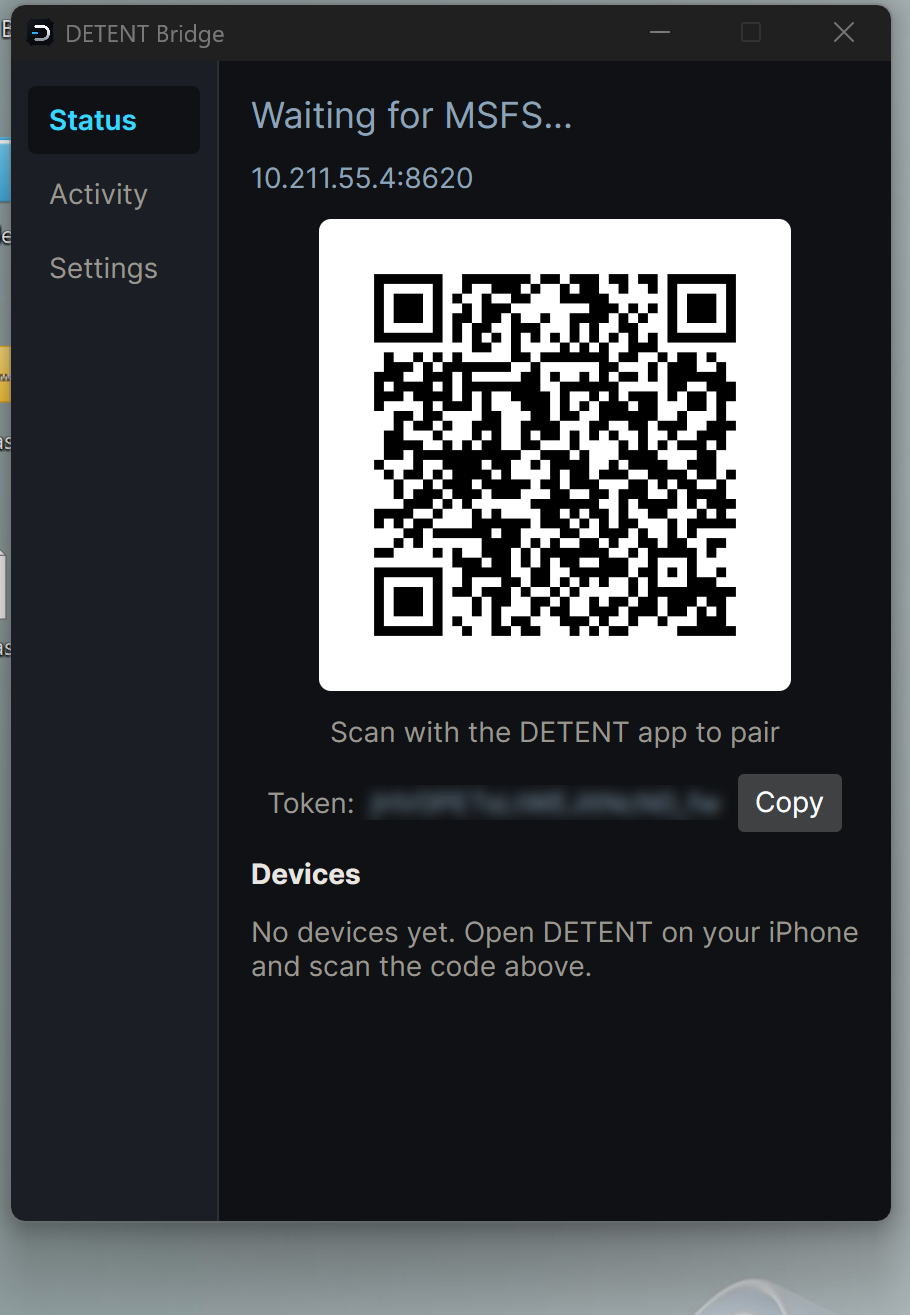
The bridge's first-launch pairing screen. Windows will also show its own "Allow DETENT Bridge to communicate on private networks?" prompt around this time. Choose Allow. Missed it? See Support.
Pair your iPhone or iPad
Open DETENT, tap the connect control, and choose Scan QR to pair. iOS will ask for the Local Network permission the first time. Allow it, both apps need it to find each other on your Wi-Fi.
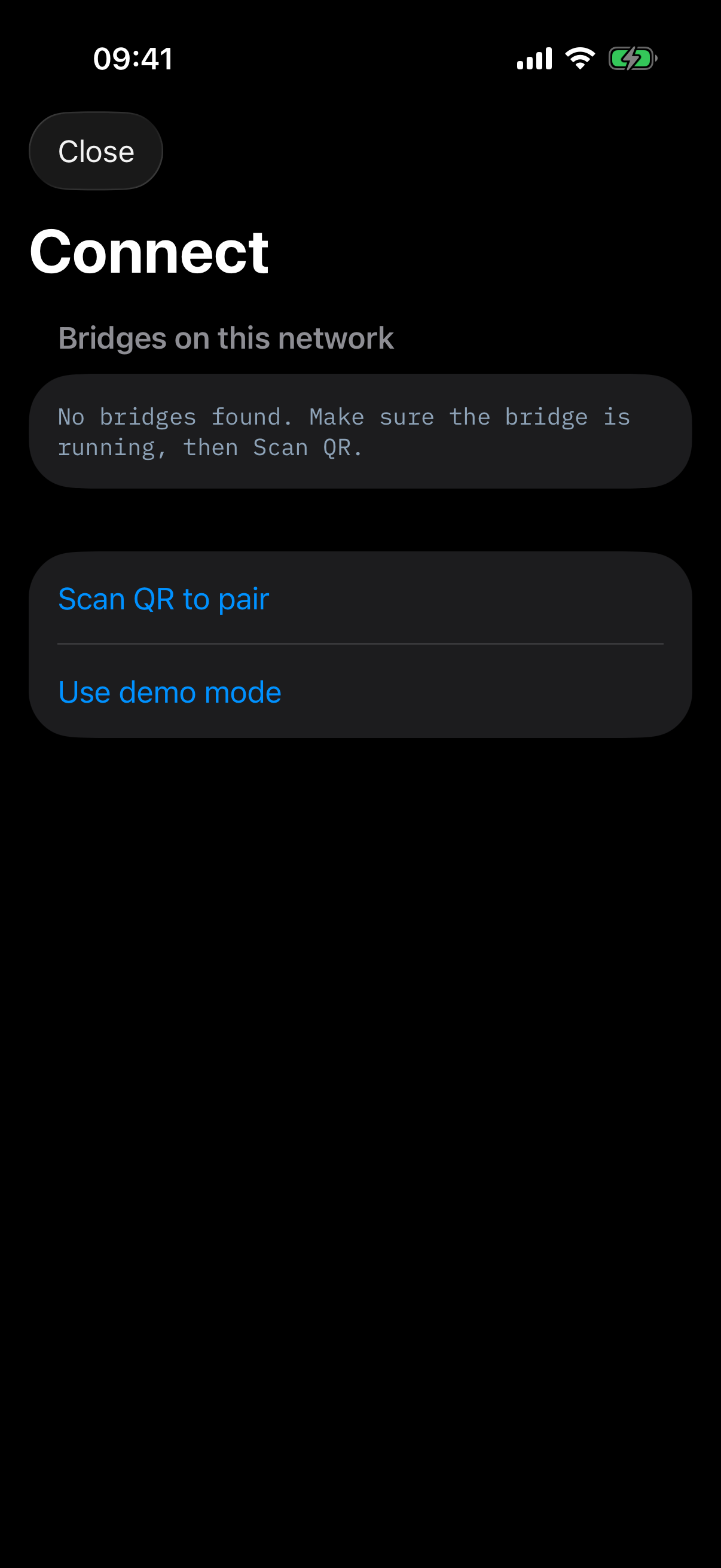
Scan a QR code to pair with the bridge on your network. iOS will ask for the Local Network permission the first time you scan. Declined it by mistake? See Support.
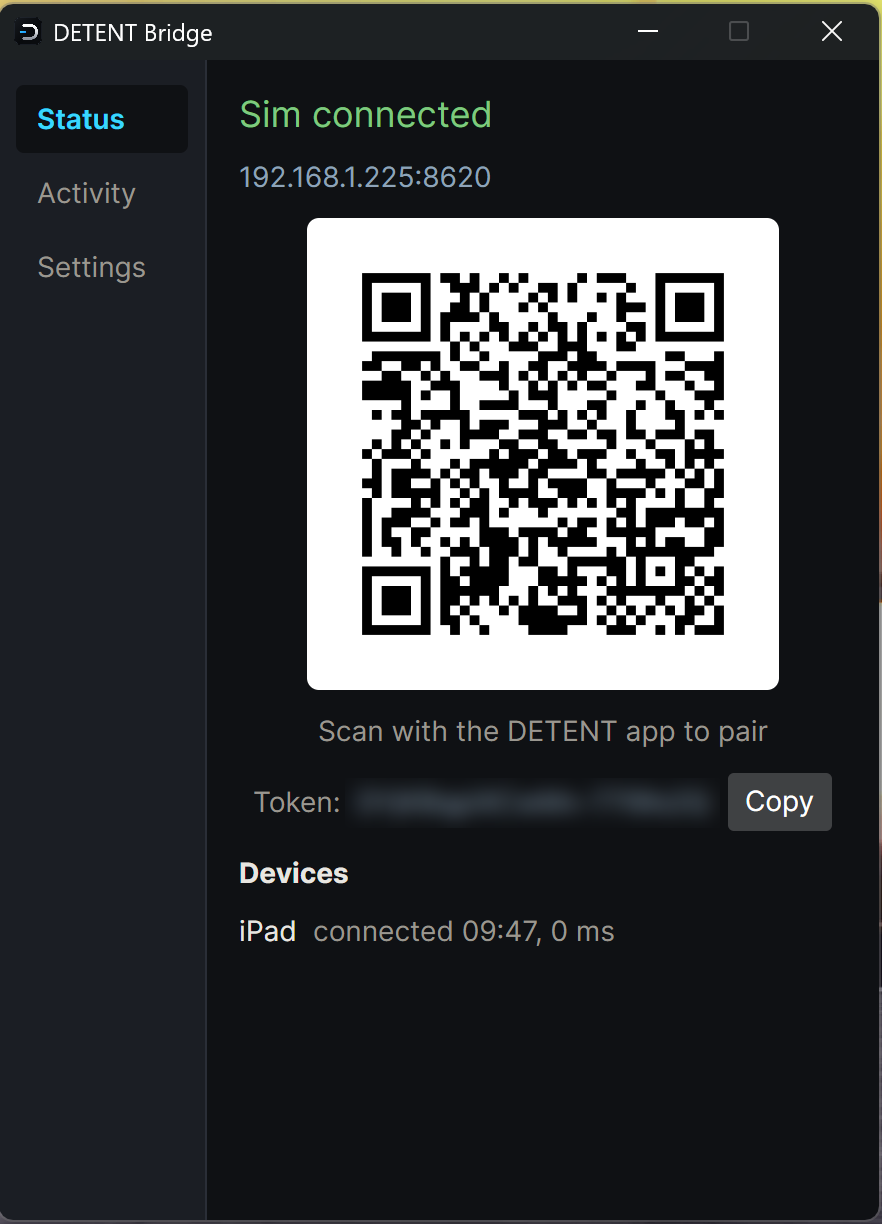
Sim connected, iPad paired, 0 ms round trip. Back on the PC, the bridge shows the same thing: your iPad in the Devices list, connected.
Tune your first radio
Spin the outer ring for the whole megahertz, the inner ring for the decimal. Hold the inner ring still for a beat to swap active and standby.
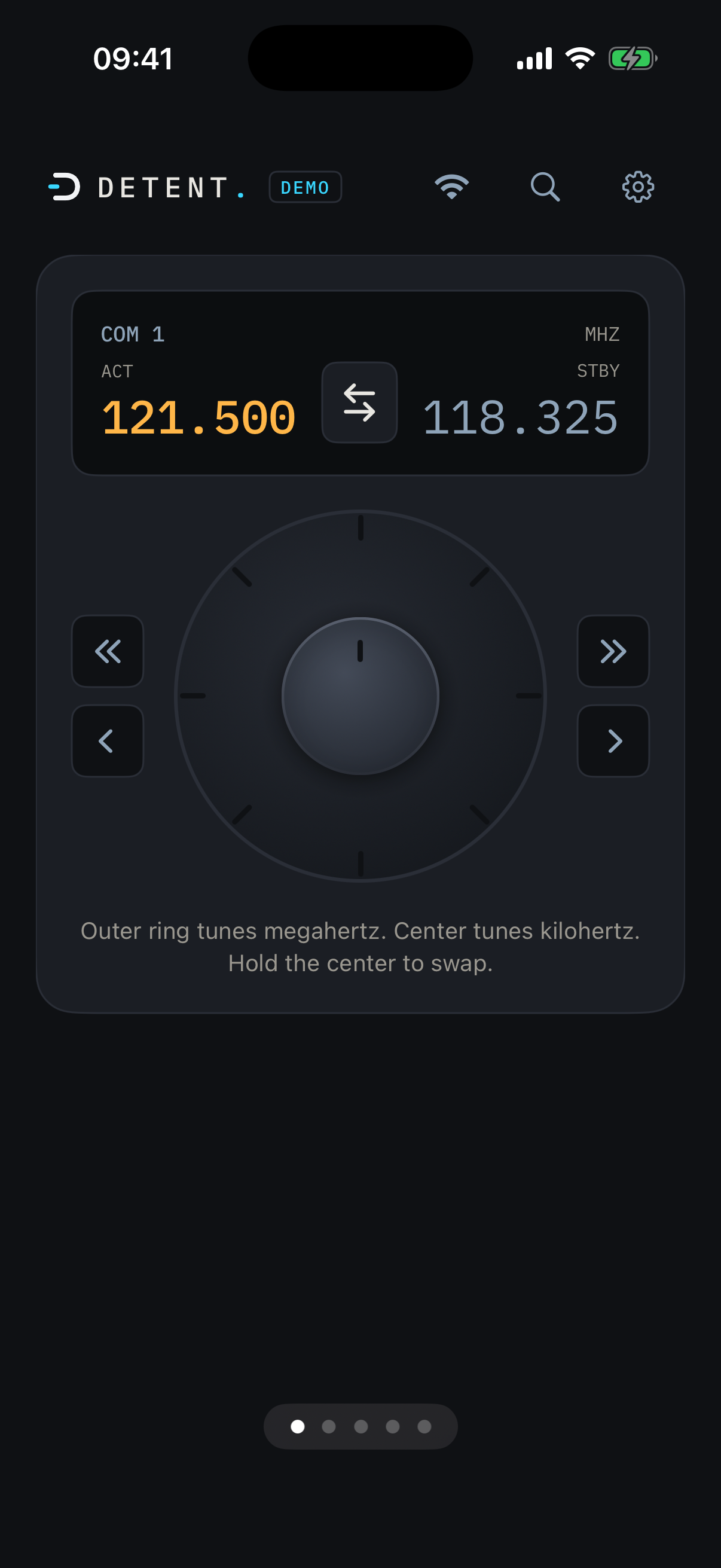
One radio at a time on iPhone, swipe between them. 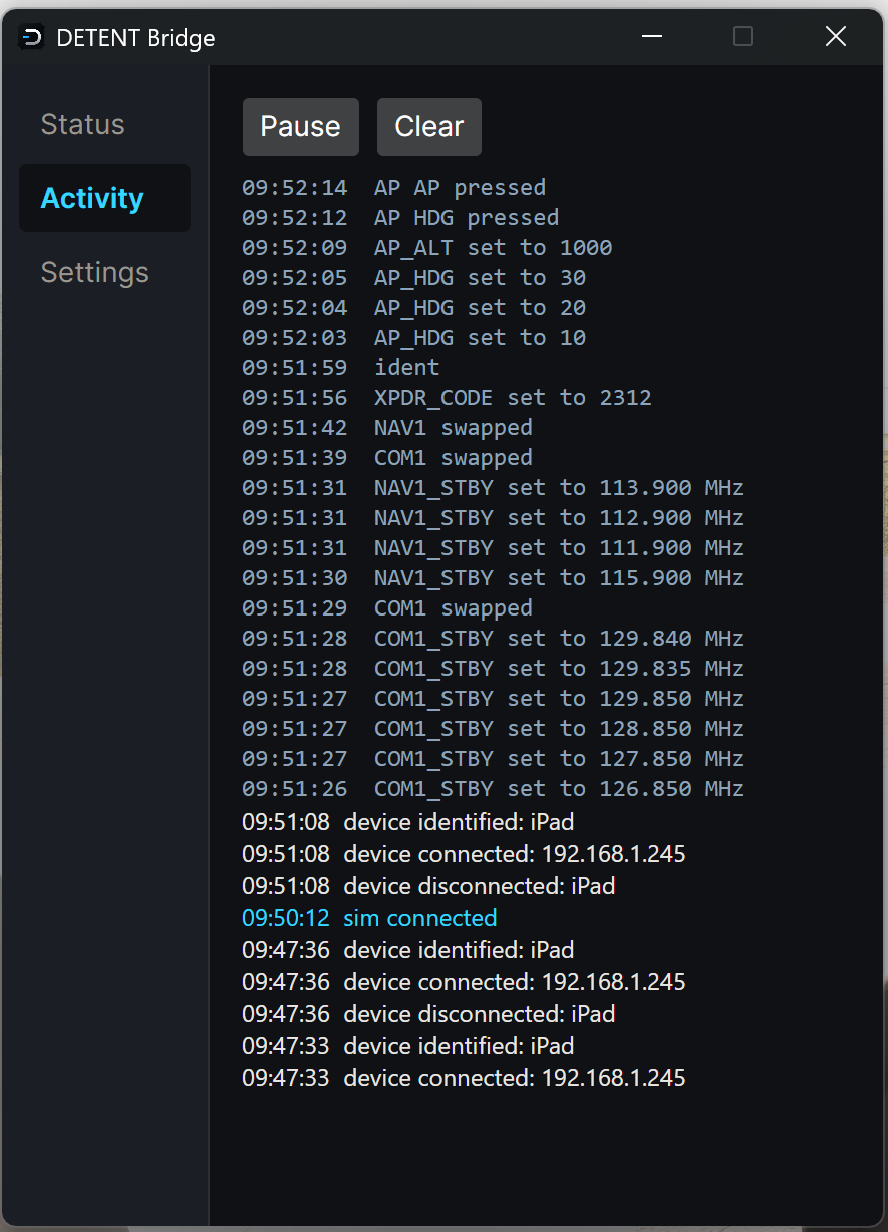
Watch every radio change land in real time.
Not connecting?
The two most common causes are the Windows Firewall prompt in step 2 and the iOS Local Network permission in step 3. Still stuck after checking those? Support covers VPNs, guest Wi-Fi isolation, and where the logs live. Go to Support →
Now that you're connected
Here is what every control on the panel does: the keypad, presets, airport lookup, NAV, the transponder, and the autopilot beta.
Read the user guide →